
How do I change my system name on Fedora Linux?
Welcome back! Today, we’re diving into a simple but satisfying system tweak.
This is my second post here on the blog, and while it might seem like this space is all about Linux, that’s not quite the case! I do happen to use and absolutely love Linux, and that will definitely be a recurring theme. However, I promise this blog will cover a much broader range of topics that I’m passionate about. From Linux to Tarot, Numerology, Astrology, the Occult, UFOs, and even art – there’s a little something for everyone.
I’m still actively learning Linux myself, and I frequently find myself looking up basic commands I’ve forgotten. So, I thought I’d start sharing some of these handy tips in the hopes they’ll also be helpful to someone else who might be searching for the same answers I was. Today’s topic is changing your system name.
Recently, I had to reinstall Fedora on my laptop. I was running into issues getting my touchscreen to work on my Asus Zenbook, so I decided to try the latest version of Ubuntu. Unfortunately, that didn’t resolve the problem either. I’m quite fond of Fedora, so I went back to it right away. I still haven’t fixed the touchscreen issue, but when I do, I’ll definitely make a post about it – it’s been quite a challenge to get it working! But, that’s a topic for another day.
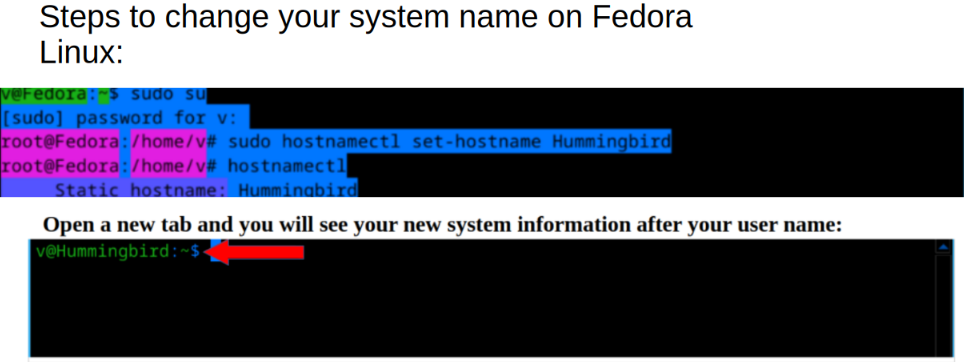
Getting back on track, when I installed Fedora this time, I forgot to change the system name. It just defaulted to “Fedora.” If you’re anything like me, you probably enjoy customizing your system as much as possible to your own liking. So, here’s how to change your system name on Fedora Linux:
- Open your terminal.
(Ctrl + Alt + T) usually works on most systems, or you can search for “Terminal” in your applications. - To simply view your current system name, type in:
(Your system name is also visible in the terminal after your username, like this:**Username@Fedora**
hostnamectl - You need to be logged in as a “Super User” or “Root” to change your system name. To do this, enter:
sudo su
(You’ll be prompted to enter your password.) - Enter the following command to change your system name:
sudo hostnamectl set-hostname YOURSYSTEMNAMEHERE
(Remember to replaceYOURSYSTEMNAMEHEREwith your desired system name.) - To verify that the changes were made, enter:
hostnamectl
Then, open a new terminal tab to see your updated system name reflected there.